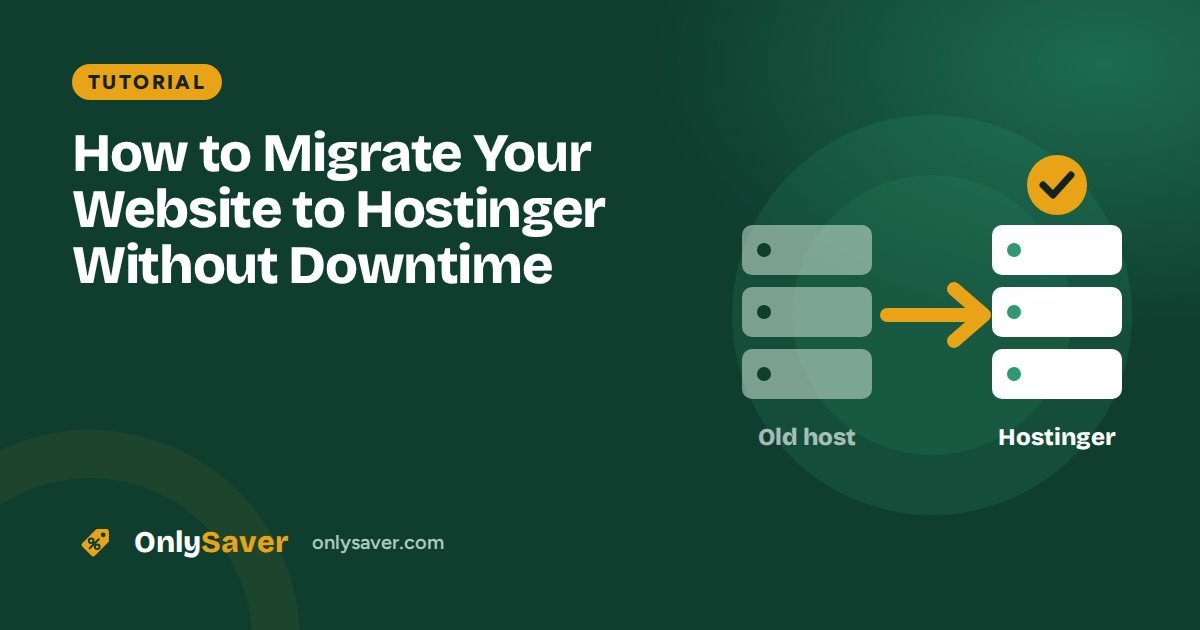
Unhappy with a slow or expensive host? Moving your website to Hostinger is easier than most people think. If you follow the steps in the right order, your visitors will never notice the switch, and your Google rankings stay where they are.
Before you start: a checklist
- Your login for the old hosting control panel (cPanel or similar)
- Your WordPress admin login (for WordPress sites)
- Access to your domain registrar (where you bought the domain)
- A list of email addresses on your domain, if any
- A full backup of your site, downloaded to your computer
Step 1: Buy Hostinger and add your website
Choose a plan with enough room for your site (Premium for most sites, Business for stores). During setup, choose to migrate an existing website.
Option A: Use Hostinger's migration tool (easiest)
- In hPanel, open Websites → Migrate website (or follow the migration option in the setup wizard).
- Enter your old site's details. For WordPress you usually need the WordPress admin URL and login; for other sites, your old control panel login or a backup file.
- Submit the request. hPanel shows the status, and you are notified when the copy is ready.
Option B: Move a WordPress site yourself
- Install WordPress on your Hostinger account.
- On your old site, install a migration plugin such as All-in-One WP Migration or Duplicator and export the site.
- Install the same plugin on the new WordPress and import the file.
- Log in again and re-save Settings → Permalinks to refresh your links.
Free versions of migration plugins may have upload size limits. Large sites are often easier with Option A.
Step 2: Test before switching
Hostinger lets you preview the migrated site before DNS points to it (look for the preview option in hPanel). Click through key pages, forms and checkout. Fix anything broken now, while visitors still see the old site.
Step 3: Recreate email accounts
If your email lived at your old host, create the same addresses on Hostinger (see how to create a business email) before changing DNS, so no messages are lost.
Step 4: Point your domain to Hostinger
- Copy the nameservers shown in hPanel.
- At your domain registrar, replace the old nameservers with Hostinger's.
- Wait for DNS to update. It often takes a few hours and can take up to 24–48 hours. A DNS propagation checker shows the progress.
Step 5: Final checks
- Confirm SSL is active in hPanel (Security → SSL).
- Test forms, payments and email, and use a redirect checker to confirm old URLs land in the right place.
- Check Google Search Console for crawl errors over the next few days.
- Once everything has run smoothly for a week, cancel your old hosting.
Migrating a site that is not WordPress
For a plain HTML site, download all files from your old host (via the file manager or FTP) and upload them to the public_html folder on Hostinger. For other PHP applications, you also need to export the database (usually from phpMyAdmin), create a new database in hPanel, import the file and update the application's configuration with the new database details.
How to keep your Google rankings
- Keep the same domain and URLs. Moving hosts does not affect rankings if the addresses stay the same.
- Add 301 redirects if any URL changes during the move, so old links lead to the new page.
- Keep HTTPS working from the first minute; check SSL with an SSL checker straight after DNS switches.
- Watch Search Console for crawl errors for a couple of weeks after the move.
- Avoid long downtime. Following the steps in order means visitors always see a working site.
A realistic timeline
| Step | Typical time |
|---|---|
| Backup and preparation | 30 minutes |
| Copying the site (tool or plugin) | Minutes to a few hours, depending on size |
| Testing on Hostinger | 30–60 minutes |
| DNS update spreading | A few hours, up to 48 hours |
| Monitoring before cancelling the old host | About a week |
Before and after checklist
Before the move
- Full backup downloaded
- List of email accounts
- Old hosting still active
- Registrar login ready
After the move
- SSL active
- Forms and payments tested
- Email sending and receiving
- Search Console checked
Common migration problems
- "Error establishing a database connection": the database name, user or password in
wp-config.phpdoes not match the new database. - Images missing: the uploads folder was not copied, or URLs still point to the old domain or a temporary address.
- Mixed content warnings: some URLs still use http://. Update the site address and search-replace old URLs.
- Email stopped working: MX records were not recreated after changing nameservers.
Moving email without losing messages
Email is the part of a migration people forget most often. If your mailboxes live at the old host:
- Create the same addresses on Hostinger before changing DNS.
- After DNS switches, new mail arrives at Hostinger.
- Old messages stay at the old host. Copy important ones by adding both accounts to an email app (IMAP) and dragging folders across, or by using an import tool if one is available.
- Keep the old mailboxes until you have copied everything you need.
Moving from GoDaddy or BigRock? Our comparisons explain what changes: Hostinger vs GoDaddy and Hostinger vs BigRock.